TL;DR: Apparition is a free, open-source sideloader that runs on the device itself: Apple Vision Pro, iPhone, iPad and Apple TV. It signs with a free Apple ID, refreshes apps on its own, and launches emulators with JIT, which works on visionOS 27 again. If you came here because of error -80045, skip to where the fixes stand. For -80046, see the follow-up.
Update, 29 October: Apple was still refusing some sign-ins with HTTP 403, for a different reason: one of Apple’s sign-in servers turned away requests from some networks. Apparition now recognizes that server, avoids it for an hour, and retries through another Apple server. The server a device reaches can depend on its DNS; if every available server refuses, Apparition reports that and suggests trying another network or using the router’s DNS. The Apple ID request itself stays with Apple; only alternate server addresses are looked up over DNS-over-HTTPS. The full account, with how it was found, is in the -80046 article’s update.
 |
|---|
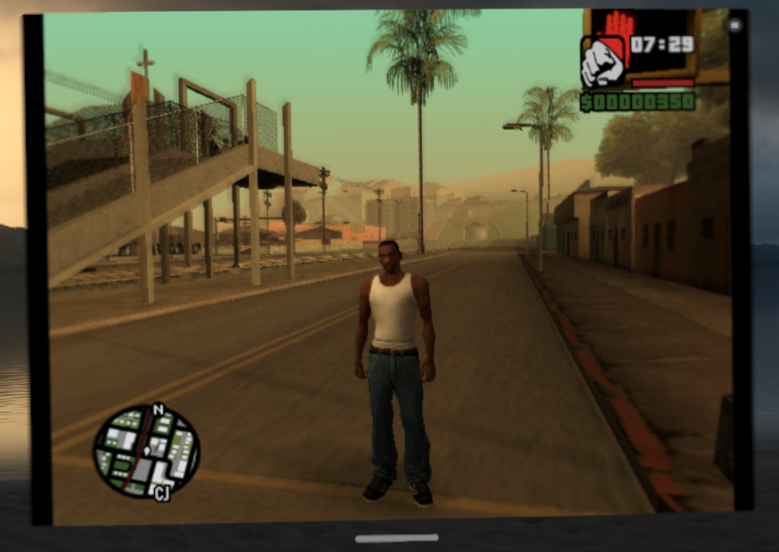
| GTA San Andreas on Apple Vision Pro, in ARMSX2 with JIT (visionOS screenshots are blurry) |
It started with a README
On 3 October I was reading a README that said sideloading on the Apple Vision Pro needs Apple’s Developer Strap, the $300 dongle that adds a USB-C port to the $3500 “spatial computer”. That didn’t sound right, so I went looking, and found iloader#565 by rebelancap: wireless pairing using the six-digit code from Settings > General > Remote Devices, plus a patched build of SideStore for visionOS. It had been open since July, and people in the thread were happily sideloading apps on their headsets with a free Apple ID.
The detail that explains why this was ever hard: over Wi-Fi, the headset doesn’t speak the protocol iPhones use to talk to a computer (usbmux and lockdown). It only speaks RemotePairing, the encrypted tunnel Xcode pairs over. AltStore and SideStore were built around the first one, so they can’t reach the headset at all. The strap was never the real blocker.
I didn’t want to run a pre-built binary from an unmerged PR, so I put the pieces together by
hand. That went about as well as you’d expect. SideStore’s own Wireless Pair got “connection
reset by peer”. pymobiledevice3, the Python toolkit everyone uses for this, failed with a
KeyError: PROOF, because it quietly sent the PIN 000000 to anything that isn’t an Apple
TV. Once I’d patched that locally, the headset paired, a free Apple ID signed in, and my own
apps installed from a source. (The pymobiledevice3 fix went upstream as
#2009 and shipped on 10 October.)
So sideloading worked. The question in the thread that I couldn’t let go of was the one everyone asks next: what about JIT?
The JIT rabbit hole
Emulators like UTM, PPSSPP and Dolphin turn the game’s code into native code while it runs.
That’s just-in-time compilation, and without it they’re several times slower. Apple doesn’t
allow it in ordinary apps, so the community trick has always been: attach a debugger to the
app, which marks it as being debugged (CS_DEBUGGED), detach, and the app can then make its
own memory executable.
In the PR thread, rebelancap had tried exactly that on visionOS 27 and given up: the debugger
attached, SideStore confirmed CS_DEBUGGED, and every JIT attempt was still blocked. I got the
same result in plain Xcode with PPSSPP: mprotect to read-execute silently dropped the
execute bit, and the app crashed.
What changed is a hardware-backed check on newer Apple chips (A15 and M2 and later, which includes the Vision Pro). The flag is still set, but memory only runs code if the debugger itself prepared it while attached. After a few days of poking at it on the headset and an iPhone 15 Pro Max, the rules came out like this:
- Only a mapping that already allows execute, and that the debugger wrote to while attached, can run code after detach. The debugger has to touch every 16 KiB page; skip one and the app crashes the moment it jumps there.
- An app’s own writable memory can never become executable.
- The app can make writable views of the prepared memory at any time, and that’s how it changes its code.
So JIT isn’t gone, but the app has to ask for its memory up front, and the debugger has to stay
attached until it does. The StikDebug project had
already defined a way to ask, often called JIT26: the app executes brk #0xf00d with a size in
a register, and the debugger prepares that much memory. UTM has its own older request,
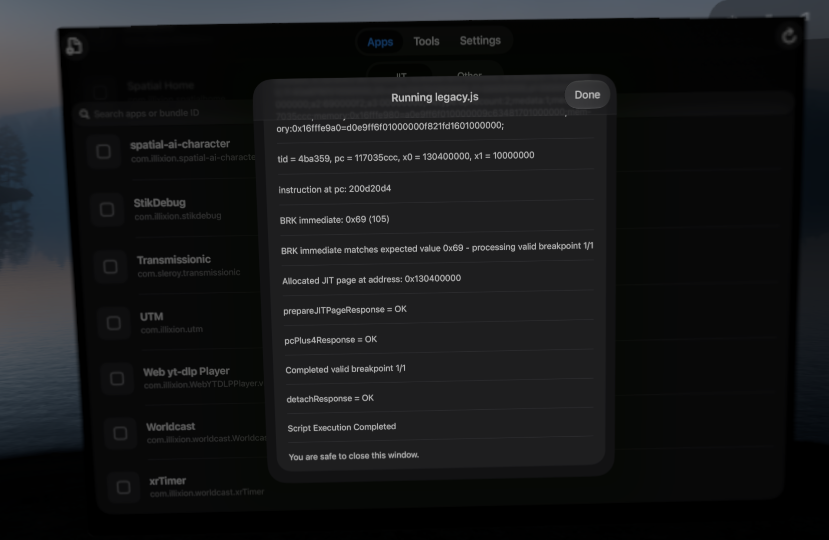
brk #0x69. I moved PPSSPP over to the JIT26 request and it ran, and UTM booted Alpine Linux on
the headset through StikDebug.
 |
|---|
| 4 October: StikDebug preparing UTM’s JIT memory on the headset |
Then I went a bit too deep. I wrote an experimental framework that retrofits JIT into engines that never asked for it, by catching their writes to code pages and redoing them through a writable view. It worked: Node and V8 ran on the headset, and so did a PS1 emulator’s dynarec, 2.4 times faster than its interpreter. But catching writes costs about a microsecond each, and for a game like Wipeout the result was only about 12% faster than the interpreter. Lesson learned: the real fix is for each emulator to ask for its memory properly. I shelved the framework.
The other thing I learned was how slow this is over a network. Preparing 320 MiB of memory through LLDB over Wi-Fi took 211 seconds. Every launch.
“We can just write this ourselves”
By 11 October I’d read enough of the visionOS SideStore fork to see what it actually changed:
about three real fixes on top of SideStore 0.7.0, plus packaging. I also found why its Wireless
Pair had failed for me: it falls back to submitting the PIN 000000, the same bug I’d fixed in
pymobiledevice3. Meanwhile, the building blocks were all out there under the MIT licence:
idevice for pairing and the tunnel, and
isideload for Apple ID sign-in and signing.
So I decided to write my own: one app that runs on the headset and does everything itself. It pairs, signs, installs and refreshes apps, and launches them with JIT. No SideStore plus StikDebug plus a computer to keep them in sync. I started that morning with a list of spikes, each one a thing that might turn out to be impossible.
Spike 1: can the headset pair with itself? Yes: the app finds the headset’s own pairing service, and you type the code Settings shows. But there was a catch I hadn’t expected. The headset resets every connection it makes to its own tunnel port, whether over loopback, IPv6, its Wi-Fi address or link-local. The only way in was through LocalDevVPN, a free App Store VPN that makes the connection look like it comes from outside. That’s also why StikDebug needs it.
Spike 2: sign in and sign an app on the device. My main Apple ID’s two-factor setup isn’t something a third-party app can answer, so I switched to a spare account, which is good advice for sideloading anyway. UTM signed on the headset in about ten seconds. Then installd rejected it, because UTM’s helper extension doesn’t survive the bundle ID change a free account forces. Apparition strips it now.
The big one: UTM with JIT, from the headset itself. UTM asked for 256 MiB, and done from the device instead of over Wi-Fi, preparing it took 0.3 seconds, not three and a half minutes. Alpine booted. (Then I found out the VM I’d made wasn’t saved and had to build it again. Classic.)
That afternoon I added a companion: the desktop app can relay the tunnel back to the headset, which replaces LocalDevVPN. Since the headset’s VPN slot is then free, Tailscale fits, and refreshing apps and launching them with JIT works away from home too, with the computer staying at home. AltStore needs its computer on the same Wi-Fi, and SideStore and StikDebug need LocalDevVPN, which takes the only VPN slot.
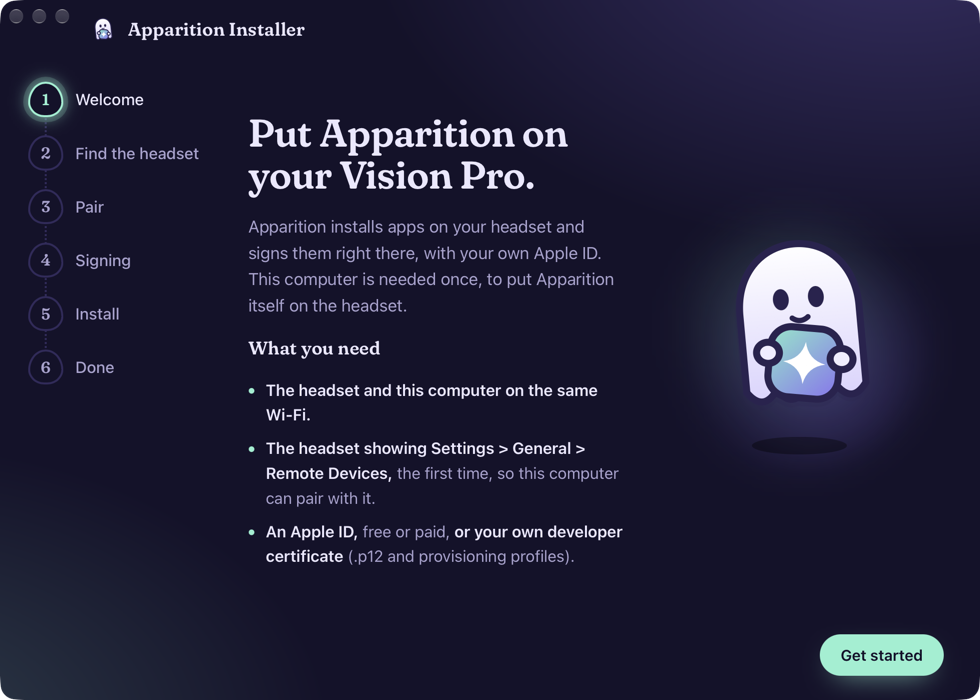
The project got its name, a native visionOS interface, Shortcuts actions, a certificate manager and signing with your own certificate the same day. The next day brought the iPhone, iPad and Apple TV builds, a desktop installer for macOS, Windows and Linux, and the ghost icon.
 |
|---|
| 12 October: the first desktop installer, needed once to put Apparition on the device |
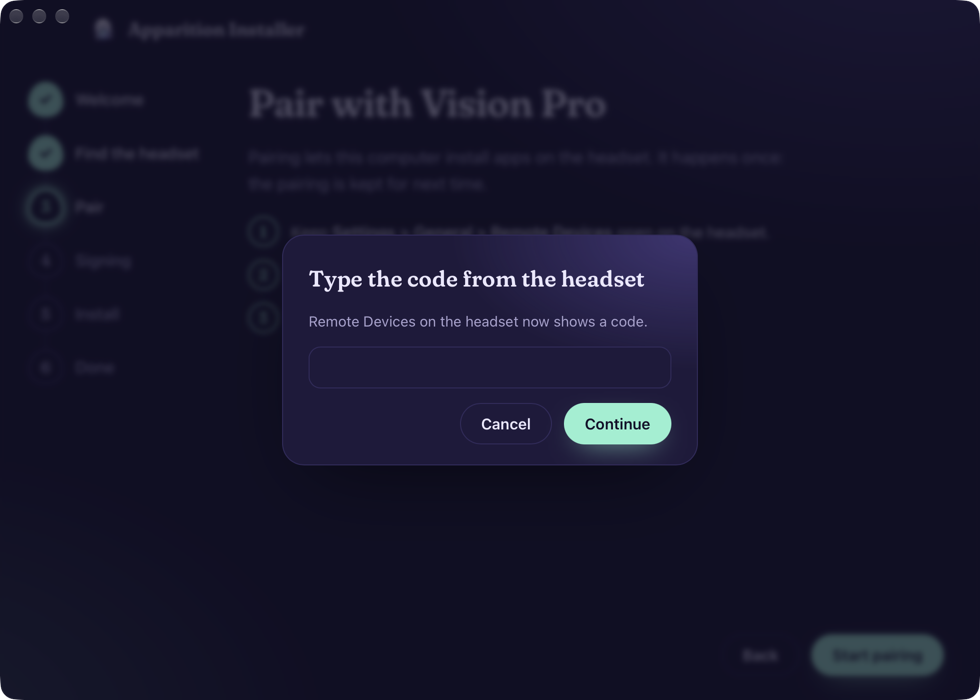 |
|---|
| Pairing with the code from Settings > General > Remote Devices: no cable, no strap |
Then Apple changed the rules
On 13 October I ran the full end-to-end test before release: fresh install, fresh sign-in. It failed:
Auth error -80045: This action cannot be completed at this time.
My first guess was something wrong with the account. Then I checked the issue trackers. Since the day before, everyone had it: iloader, AltStore, xtool, atvloadly, SideStore, Sideloadly. Every tool that signs in with a free Apple ID without Xcode was broken, days before my release. That is some incredible timing.
A fake Apple ID is a safe test subject
People in the threads mentioned getting -80045 even with made-up email addresses. That turned out to be the most useful clue. If Apple refuses the request outright, you get -80045. If it accepts it, you get the ordinary “Your account information was entered incorrectly” (-20101), the same thing Xcode says for an account that doesn’t exist. A made-up address can’t get locked, so I could test as much as I liked.
Wrong turn 1: “attestation is required”
Xcode still signed in fine, so the first suspect was something Apple’s own sign-in sends that
third-party tools don’t. In a macOS 27 virtual machine with System Integrity Protection off, I
watched the sign-in daemon akd during an Xcode sign-in. Every request it sends is signed with
Apple’s Basic Attestation, a certificate backed by the Mac’s Secure Enclave. Attestation can’t
be forged, so for about twenty minutes this looked like the end of free sideloading.
It wasn’t. With a small helper that has AuthKit’s private entitlements (macOS only runs one with SIP and AMFI off, fine in a test VM), I could get the VM’s own anisette data, the headers that identify a machine to Apple, and send the same request both ways:
| Anisette | Attestation | Result |
|---|---|---|
| The Mac’s own | yes | accepted |
| The Mac’s own | no | accepted |
| Android libraries | no | -80045 |
Attestation didn’t matter. The anisette did.
Wrong turn 2: “Apple banned Android anisette”
Some background. Tools that sign in from Linux, Windows or a server can’t run Apple’s Mac code for anisette, so for years they’ve used the copy inside Apple Music for Android, loaded outside Android. That’s what an “anisette server” is. So my second conclusion was that Apple had simply banned those libraries.
A Mac’s own anisette still worked, so I built that into Apparition. On macOS 26 and earlier, any program can ask macOS for it, and an old Intel MacBook Pro on macOS 15 gave me the first real sign-in of the day. On macOS 27, Apple had closed that door too: only a program with AuthKit’s private entitlements gets an answer. That’s a workaround for some Macs, not a fix.
But that didn’t make sense: Apple Music still signs in on Android, using these very libraries. The answer had to be simpler, so I pulled the latest Apple Music APK and re-checked what it does.
The actual answer: just tell the truth
Every sign-in also says which device it comes from, in a header called X-Mme-Client-Info. The
tools have always claimed to be a Mac running Xcode. But the library itself comes from Android, so… what if we claimed to be an Android device instead?
X-Mme-Client-Info (Android anisette in every row) | Result |
|---|---|
<Mac15,7> <macOS;27.0;26A5378j> <com.apple.AuthKit/1 (com.apple.akd/1.0)> | -80045 |
<PC> <Windows;6.2(0,0);9200> <com.apple.AuthKit/1 (com.apple.iCloud/7.21)> | -80045 |
<iPhone15,2> <iPhone OS;17.0;21A329> <com.apple.AuthKit/1 (com.apple.akd/1.0)> | -80045 |
<Pixel 8><Android; 14; UQ1A.240205.004><com.apple.AuthKit/1 (com.apple.android.music/4.9.6)> | accepted |
<Pixel 8><Android; 14; UQ1A.240205.004><com.apple.AuthKit/1 (com.apple.akd/1.0)> | accepted |
Apple now checks that the platform in the middle matches the anisette. The program named at the end doesn’t matter, and neither does the User-Agent.
The second wall
With a real account, the Android claim signed in, but the next step, getting the token that Apple’s developer services need, failed with another “This action cannot be completed” (-22411). The usual two-factor requests didn’t help either: asking for the trusted phone numbers got HTTP 401.
The idea that cracked it came from looking at my own phone. Apple had already pushed a code to
my devices; we were just giving up before asking for it. Checking that code with the one request that validates
codes (validateCode), then signing in again, got the token. After that, later sign-ins
needed no code at all, the same as on a Mac.
Not the only one
While I was writing it up, I noticed isideload#26, opened minutes earlier, with the same idea from the anisette server’s side. I added what I’d found: the popular anisette server reports a Mac while serving Android anisette, and the pushed code has to be checked. It was merged within minutes, and iloader 2.3.7 shipped with the fix that evening. It’s a good feeling to see your own idea validated and implemented so quickly, and it’s what makes FOSS contributions so rewarding for me.
The payoff: PS2 on Vision Pro
With sign-in working again, there was one thing left I wanted before releasing: the thing barlarb asked for in the PR thread back in July. PS2 games.
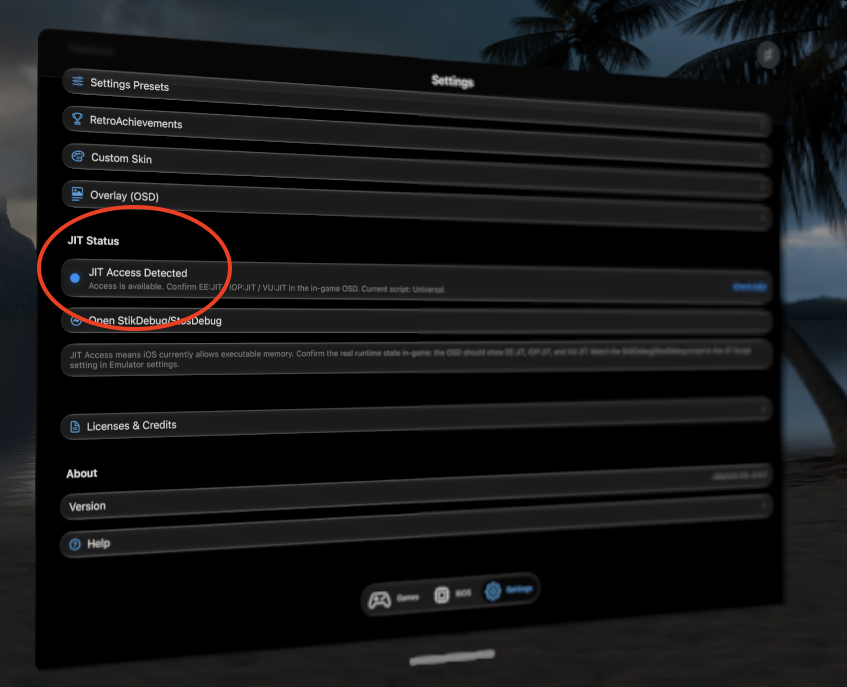
ARMSX2, a PS2 emulator with an iOS port, already asks for its JIT memory with the JIT26 request, so it should just work. It has no iOS release yet, so I built it from source and installed the IPA with Apparition. On launch, it asked for a 305 MiB code region. Apparition prepared all 19,520 pages in about two seconds, ARMSX2 reported its JIT as working, and with my own BIOS and game dumps, Grand Theft Auto: San Andreas booted on the Vision Pro and ran perfectly.
 |
|---|
| ARMSX2 sees JIT, using the “Universal” request. Its text mentions StikDebug, but here it’s Apparition answering. |
Here’s the whole thing in one take, from launching ARMSX2 with JIT to walking around the open world:
Apparition 0.1.0 went out a few hours later, in the early morning of 14 October: the app for visionOS, iOS and tvOS, and the desktop app for macOS, Windows and Linux, all built and attested by GitHub Actions. 0.1.1 followed the same day, with “Add to Apparition” links for sources.
Apparition, if you want to try it
You need a Mac, Windows or Linux computer for the first install, on the same Wi-Fi as the device.
- Get the desktop app for macOS, Windows or Linux from
apparition.illixion.com. It isn’t notarized, so on a Mac
move it to Applications and clear the download quarantine in Terminal:
xattr -dr com.apple.quarantine /Applications/Apparition.app. - Pair the device. This happens once, and how depends on the device:
- Vision Pro: open Settings > General > Remote Devices. The headset appears in the desktop app; pick it and type the six-digit code the headset shows. No cable, no Developer Strap.
- Apple TV: open Settings > Remotes and Devices > Remote App and Devices and pair the same way. The TV asks for a code twice: once for the computer, and once for Apparition’s own pairing, which the desktop app hands over when it installs Apparition.
- iPhone or iPad: these have no pairing code, so plug the device into the computer with a USB cable and unlock it. If it asks whether to trust the computer, tap Trust and enter the passcode. You only need the cable this once; after pairing, everything happens over Wi-Fi. (A device that already syncs with your Mac over Wi-Fi can skip the cable.)
- Sign in and install. Sign in with an Apple ID, a spare one if you can, and type the code Apple sends to your other devices the first time. Or choose your own certificate and profile. The desktop app installs Apparition and hands it the pairing and signing, so it opens on the device ready to go.
- If it won’t open, the device needs one of two settings. Turn on Developer Mode under Settings > Privacy & Security, which restarts the device. Or, if it says the developer isn’t trusted, trust it under Settings > General > VPN & Device Management.
- Install apps. In Apparition, add an AltStore-style source or a GitHub project such as
github:utmapp/UTM, install, and tap Launch with JIT for emulators. A source’s web page can also have an Add to Apparition button, like the ones on apps.illixion.com, which opens the source in Apparition, ready to add.
After the first install, refreshing apps and launching them with JIT need one of two things, because a device can’t reach its own pairing service directly:
- The companion: leave the desktop app running on a computer. It doesn’t have to be on the same Wi-Fi, as AltStore’s computer does: over Tailscale, a computer left at home keeps it working wherever the device is. And the device’s one VPN slot stays free for Tailscale.
- LocalDevVPN on the device, from the App Store: no computer at all, the way SideStore works. It takes the VPN slot, though, so it can’t run alongside Tailscale or another VPN.
Apparition is open source under the MIT licence: github.com/illixion/Apparition.
Never used Tailscale?
Tailscale puts your devices on one private network, wherever each of
them is: your phone on mobile data can reach your Mac at home as if they were on the same
Wi-Fi, without opening anything on your router. It’s free for personal use. You install the
app on each device, sign in with the same account, and every device gets an address that
starts with 100. that the others can always reach.
If you’ve used Hamachi before, Tailscale is kind of like that, except free for up to 100 devices (compared to Hamachi’s 5), easier to set up, and is what I use for my own devices.
For Apparition, that address is how the device finds its companion away from home: in Setup > Companion, type the computer’s Tailscale address with port 49160.
It’s worth having anyway. The same trick lets you reach your Mac’s Screen Sharing, or a game streaming PC, from anywhere. That’s what I use Longwave for, my remote desktop app for Vision Pro, iPhone and iPad: native Mac streaming, Screen Sharing and other VNC servers, game streaming from a Sunshine host, and an SSH terminal. On Vision Pro, each desktop sits in the room as a window you place. It isn’t on the App Store yet; its iPhone and iPad build installs with Apparition from apps.illixion.com.
For developers
Where the fixes stand
Update, 24 October: since 22 October there’s a second break, -80046 when asking for the Xcode token, and it needs one more header change. Where each tool stands and the fix are in Sideloading error -80046.
As of 14 October:
- iloader 2.3.7 and xtool 1.22.2 are fixed.
- SideStore merged the fix into its signing library (SideSign#5), but no release includes it yet. In the meantime, users report that setting an Android client info under Settings > User Customizations > Anisette Client Configuration gets them signed in.
- AltStore and atvloadly have no fix yet.
If you just use one of these tools, update when your tool’s fix ships; retrying a real account over and over risks a temporary lock. Accounts that only get two-factor codes by SMS still don’t work: Apple refuses the SMS requests for these sign-ins.
Fixing a tool that signs in
- Send
X-Mme-Client-Infowith an Android platform whenever the anisette comes from the Android libraries, for example<Pixel 8><Android; 14; UQ1A.240205.004><com.apple.AuthKit/1 (com.apple.android.music/4.9.6)>. Keep claiming a Mac when the anisette really is a Mac’s own. - Expect the code Apple pushes to your devices. When the sign-in’s status says
hsc409 with noau, Apple has already sent it: ask the user for it and check it withvalidateCode(thesecurity-codeheader), without requesting another push. That’s how isideload and SideSign handle it. Apparition does it later, when the Xcode token request returns -22411. - Since 22 October: claim a Mac on the Xcode token request and the developer requests after it, or Apple answers -80046. See the -80046 post.
Apparition’s version is in
claimed_platform.rs.
Apple changed this once and can change it again, so expect to adapt.
Getting JIT on iOS 26 and visionOS 27
If your emulator flips one mapping between writable and executable, it won’t get JIT from any
debugger on these systems. Ask for prepared memory with brk #0xf00d at startup, as described
in StikDebug’s integration guide, and emit code through a writable alias of it. QEMU, as used by
UTM, already works this way, and so does ARMSX2. Two gotchas from porting work: Apple reserves
register x18, and Apple silicon pages are 16 KiB, not 4 KiB. SideStore’s documentation keeps
a list of apps that already ask.
Thanks
To rebelancap, whose PR started all of this; nab138 for isideload and iloader; jkcoxson for idevice; Dadoum for the anisette work everyone builds on; the StikDebug team for the JIT26 protocol; and everyone in the -80045 threads who ruled things out while it was being figured out.